
Workflows
Workflows connect triggers (events) to action providers (responses) in Hydden Discovery's automation system. Each workflow defines when an action should execute, what action to perform, and how to format the payload using template variables.
Overview
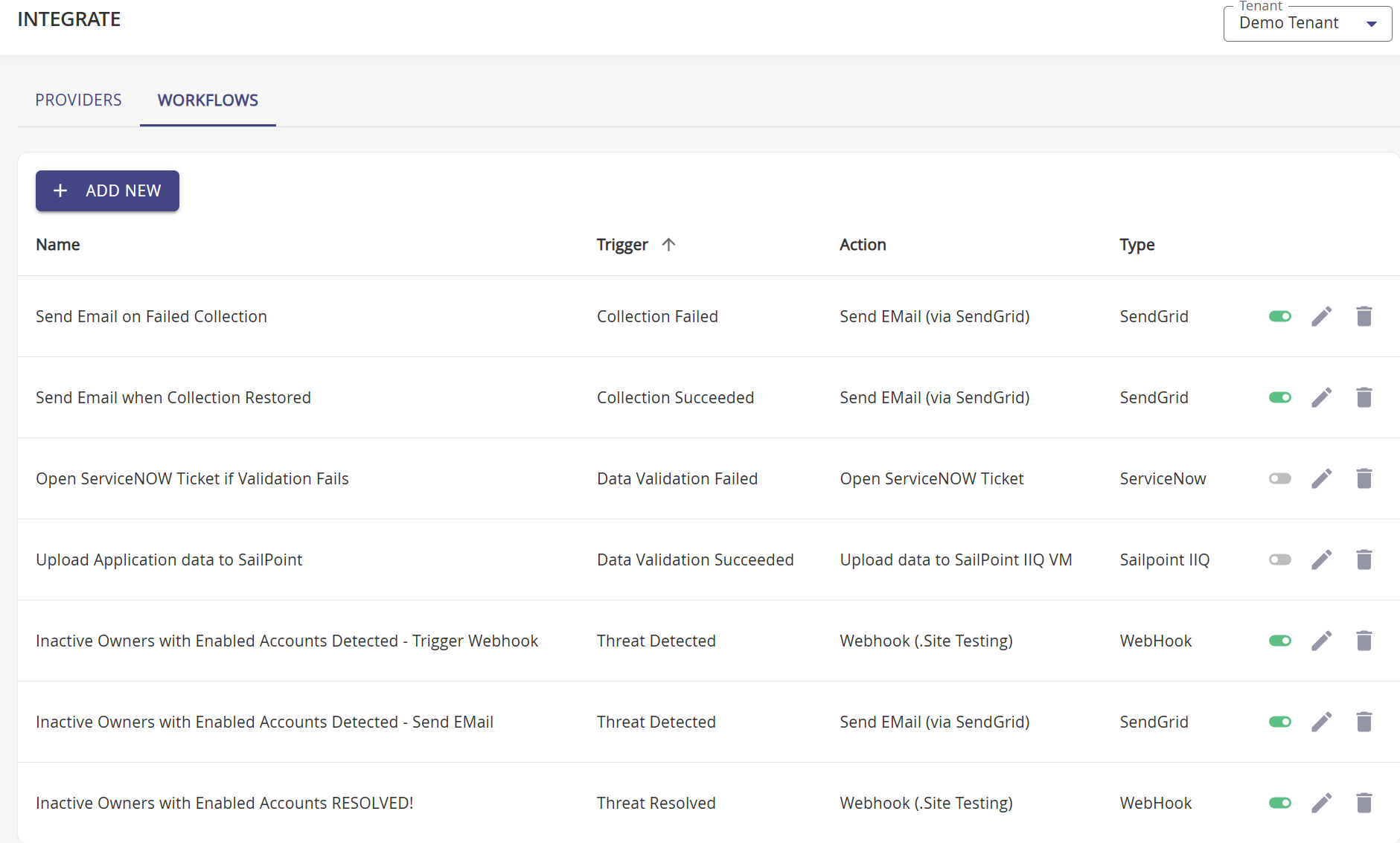
Workflows are the core orchestration component of automation in Hydden Discovery:
- Trigger: The event that initiates the workflow (threat detection, collection failure, classification change, etc.)
- Action: The provider that executes the response (email, ServiceNow, webhook, vault)
- Payload/Configuration: Template customization using variables from the trigger event
- Filters: Optional rules to scope workflows to specific events (e.g., specific threat rules)
- Approval: Optional requirement for manager approval before execution
- Enable/Disable: Toggle workflows on or off without deleting configuration
Key Concepts
Workflow Lifecycle
- Event Generation: System event occurs (threat detected, collection failed, etc.)
- Trigger Matching: Workflow coordinator matches enabled workflows to the event type
- Filter Evaluation: Workflows with filter options check if event matches criteria
- Approval Check: If approval required, workflow waits for manager sign-off
- Template Rendering: Payload/configuration fields are rendered with event data
- Action Execution: Provider executes the action (send email, create ticket, vault account)
- Result Logging: Success or failure is logged for audit and troubleshooting
Workflow States
Workflows have two states controlled by the enable/disable toggle:
- Enabled: Workflow actively processes matching events
- Disabled: Workflow configuration is preserved but does not execute
Toggle workflows on or off using the switch in the workflow table grid.
Template Variable Substitution
Workflows support template variables using {VariableName} syntax. Variables are automatically populated from the triggering event.
Example:
Subject: Threat Detected: {ThreatName} on {Platform}
Body: Account {Name} triggered threat rule {ThreatName} with a score of {Score}.
When a threat is detected, variables are substituted with actual values:
Subject: Threat Detected: Dormant Admin Account on Active Directory
Body: Account admin_prod triggered threat rule Dormant Admin Account with a score of 85.
See Triggers for complete variable lists by trigger type.
Creating Workflows
Email Workflow (SendGrid/SMTP)
Email workflows send notifications when events occur.
To create an email workflow:
- In Hydden, navigate to Configuration > Automate.
- On the Workflows tab, click + Add New.
- For Name, enter a descriptive workflow name (e.g., "Collection Failure Alert").
- For Description, enter an optional description of the workflow's purpose.
- From the Trigger drop-down, select the event that should initiate this workflow:
- Certification Status
- Classification Added
- Classification Removed
- Collection Failed
- Collection Succeeded
- Data Validation Failed
- Data Validation Succeeded
- Entity Alert
- Scheduled Report
- Threat Detected
- Threat Resolved
- From the Action drop-down, select your configured email provider (SendGrid or SMTP).
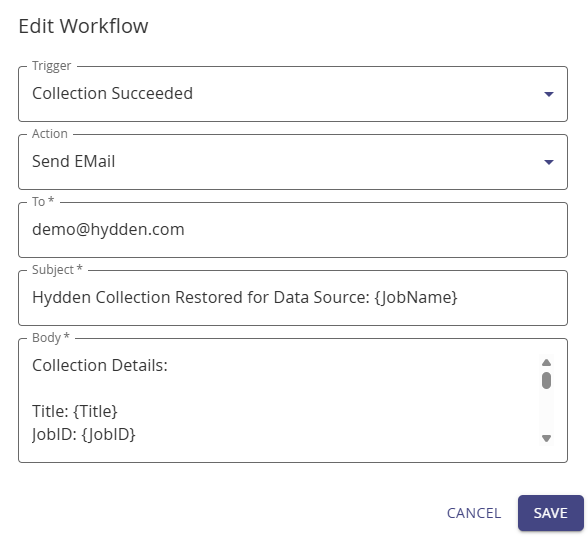
- For To, enter recipient email address(es):
- Single recipient:
admin@example.com - Multiple recipients:
admin@example.com, ops@example.com - Template variables:
{AssignedToEmail}— resolves to the event value at runtime. Empty values are skipped automatically.
- Single recipient:
- For Subject, enter the email subject line:
- Supports template variables (e.g.,
Collection Failed: {JobName}) - Keep under 100 characters for best email client compatibility
- Supports template variables (e.g.,
- For Body, enter the email message content:
- Supports template variables for event details
- Plain text format (HTML not currently supported)
- Variables auto-display when you type
{in the field - See Triggers for available variables
- (Optional) Configure filter options to scope the workflow (see Filtering Workflows)
- (Optional) Configure approval requirements (see Approval Workflows)
- Click Save.
- Toggle the workflow switch to on to activate it.
Example email workflow:
ServiceNow Workflow
ServiceNow workflows create incident tickets automatically when events occur. See ServiceNow Ticket Actions for detailed configuration.
To create a ServiceNow workflow:
- Navigate to Configuration > Automate.
- On the Workflows tab, click + Add New.
- For Name and Description, provide a descriptive workflow name and purpose.
- From the Trigger drop-down, select the event (e.g., Threat Detected, Collection Failed).
- From the Action drop-down, select your configured ServiceNow provider.
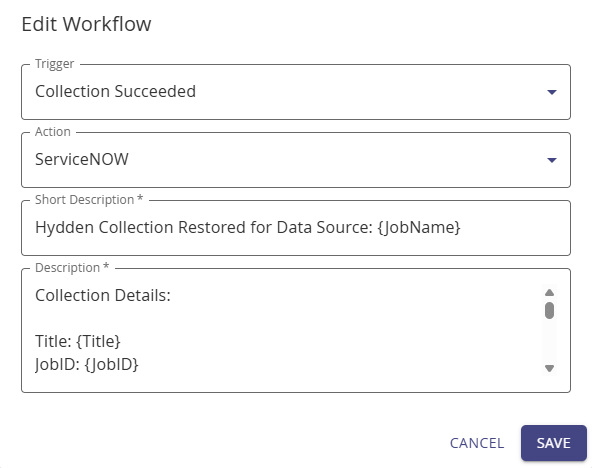
- For Short Description, provide a brief ticket title:
- Supports template variables (e.g.,
Threat Detected: {ThreatName}) - This becomes the ServiceNow incident short_description field
- Supports template variables (e.g.,
- For Description, provide detailed ticket content:
- Supports template variables for event details
- This becomes the ServiceNow incident description field
- Click Save.
- Toggle the workflow switch to on to activate it.
Example ServiceNow workflow:
Webhook Workflow
Webhook workflows send HTTP requests to external systems. See Using Webhooks for detailed configuration.
To create a webhook workflow:
- Navigate to Configuration > Automate.
- On the Workflows tab, click + Add New.
- For Name and Description, provide a descriptive workflow name and purpose.
- From the Trigger drop-down, select the event.
- From the Action drop-down, select your configured webhook provider.
- For Payload, provide the webhook request body:
- Supports template variables
- Can be JSON, XML, or any text format
- If empty or
{}, the entire event object is sent as JSON
- Click Save.
- Toggle the workflow switch to on to activate it.
Add to Vault Workflow
Add to Vault workflows automatically onboard accounts to PAM systems when classifications are applied. See Add to Vault for detailed configuration.
Filtering Workflows
Workflows can be scoped to specific events using filter options. This allows multiple workflows for the same trigger type, each handling different scenarios.
Threat Detection Filters
Filter threat workflows by specific threat rule identifiers:
- Filter Option:
threatid - Filter Value: The threat rule identifier (e.g.,
dormant-admin-90)
Example: Create separate workflows for high-severity vs. low-severity threats:
- Workflow 1: Trigger = Threat Detected, Filter =
threatid: high-risk-threats, Action = Create ServiceNow incident - Workflow 2: Trigger = Threat Detected, Filter =
threatid: low-risk-threats, Action = Send email notification
Classification Filters
Filter classification workflows by specific classification rule identifiers:
- Filter Option:
classificationid - Filter Value: The classification rule identifier (e.g.,
auto-vault-privileged)
Example: Auto-vault accounts with specific classifications:
- Workflow 1: Trigger = Classification Added, Filter =
classificationid: add-to-cyberark, Action = Add to CyberArk vault - Workflow 2: Trigger = Classification Added, Filter =
classificationid: add-to-beyondtrust, Action = Add to BeyondTrust vault
Entity Alert Filters
Filter entity workflows by entity identifier or alert type:
- Filter Option:
entityid- Filter by specific entity - Filter Option:
entityalerttype- Filter by change type (Create, Update, Delete)
Example: Track privileged account creation:
- Workflow 1: Trigger = Entity Alert, Filter =
entityalerttype: Create, Action = Send email to security team
Approval Workflows
Workflows can require manager approval before executing actions. This is useful for high-impact actions like account vaulting or ticket creation.
Configuring Approvals
To require approvals for a workflow:
- When creating or editing a workflow, enable Approval Required.
- Specify the Approval Count: Number of managers who must approve.
- Specify Manager list: Email addresses or user identifiers of approvers.
Approval Process
- Event occurs: Trigger event is generated (e.g., Classification Added).
- Approval created: System creates an approval entity with correlation ID.
- Notification sent: Managers are notified of pending approval (via separate notification workflow).
- Managers approve: Managers sign off on the action via UI or API.
- Threshold met: Once
ApprovalCountmanagers have approved, workflow executes. - Action executes: The action provider performs the response (e.g., vault account).
NOTE
Approval workflows require additional configuration of notification workflows to alert managers. Contact your Hydden administrator for approval workflow setup assistance.
Special Workflow Considerations
Threat Detection Workflows
To activate threat detection workflows:
- Create the workflow with Threat Detected or Threat Resolved trigger.
- Enable the workflow (toggle to on).
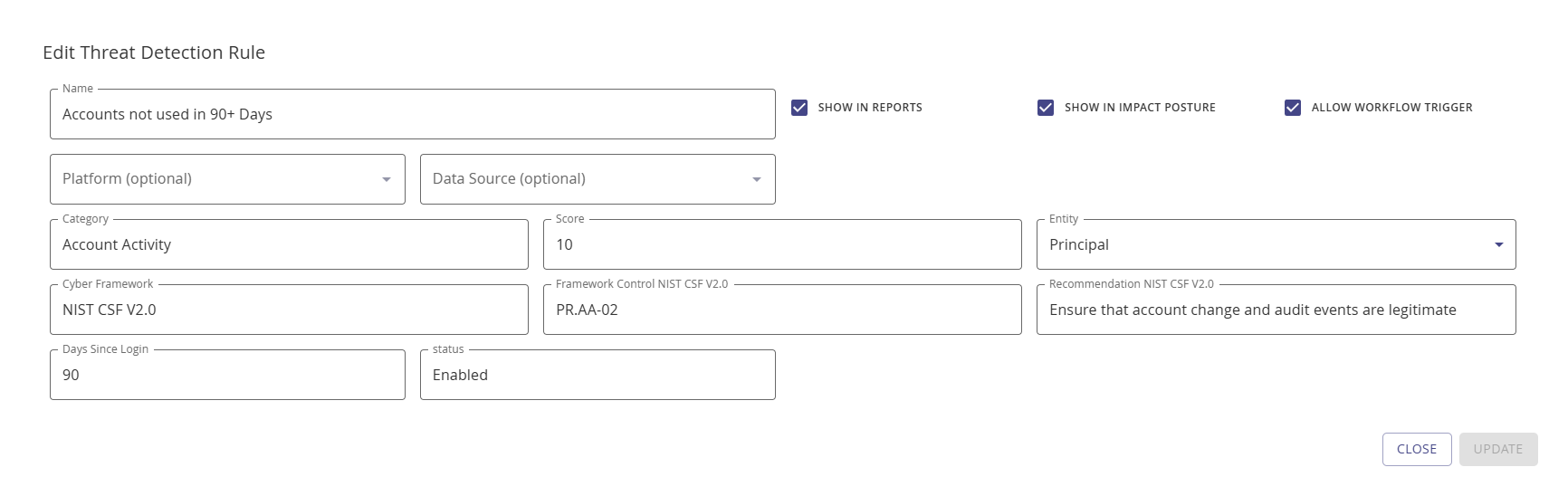
- Enable workflow trigger on the threat detection rule:
- Navigate to Configuration > Identify > Threat Detection
- Edit the threat detection rule
- Enable the Allow Workflow Trigger checkbox
- Save the rule
IMPORTANT
Threat workflows will not execute unless the Allow Workflow Trigger checkbox is enabled on the threat detection rule configuration.
Classification Workflows
To activate classification workflows:
- Create the workflow with Classification Added or Classification Removed trigger.
- Enable the workflow (toggle to on).
- Enable workflow trigger on the classification rule:
- Navigate to Configuration > Identify > Classification Rules
- Edit the classification rule
- Enable the Allow Workflow Trigger checkbox
- Save the rule
NOTE
Classification workflows will not execute unless the Allow Workflow Trigger checkbox is enabled on the classification rule configuration.
Collection and Validation Workflows
Collection and data validation workflows do not require special configuration on rules. They automatically execute when enabled.
NOTE
A collection must be run successfully at least once before Collection Failed triggers can fire. Similarly, a collection must complete at least once before Collection Succeeded triggers fire.
Managing Workflows
Editing Workflows
To modify an existing workflow:
- Navigate to Configuration > Automate.
- On the Workflows tab, find the workflow in the table.
- Click the Edit action in the workflow row.
- Update the desired fields.
- Click Update to save changes.
Enabling/Disabling Workflows
To activate or deactivate a workflow without deleting it:
- Navigate to Configuration > Automate.
- On the Workflows tab, find the workflow in the table.
- Toggle the switch in the workflow row:
- On: Workflow is enabled and will process events
- Off: Workflow is disabled and will not process events
Deleting Workflows
To permanently remove a workflow:
- Navigate to Configuration > Automate.
- On the Workflows tab, find the workflow in the table.
- Click the Delete action in the workflow row.
- Confirm deletion.
Testing Workflows
The best way to test a workflow is to trigger the associated event:
Testing Collection Workflows:
- Run a data source collection (or force a failure by using invalid credentials)
- Check that the workflow executes (check email inbox, ServiceNow instance, or webhook endpoint)
Testing Threat Workflows:
- Ensure threat detection rule has Allow Workflow Trigger enabled
- Run a collection that will trigger the threat rule
- Verify workflow executes when threat is detected
Testing Classification Workflows:
- Ensure classification rule has Allow Workflow Trigger enabled
- Manually apply classification to an account or run a collection that triggers the classification
- Verify workflow executes when classification is added
Workflow Execution Monitoring
Workflow execution is logged for audit and troubleshooting purposes:
- Success: Workflow executed successfully and action completed
- Failure: Workflow failed to execute (check logs for error details)
- Pending Approval: Workflow awaiting manager approval
- Disabled: Workflow is disabled and did not execute
Check the Hydden Discovery logs for detailed workflow execution information:
- Workflow trigger events
- Template rendering results
- Action execution status
- Error messages and stack traces
Common Use Cases
Security Operations
High-Severity Threat Response:
Name: Critical Threat Alert
Trigger: Threat Detected
Filter: threatid: critical-threats
Action: ServiceNow Production
Short Description: CRITICAL: {ThreatName} on {Platform}
Description: Threat detected requiring immediate attention...
Threat Resolution Notification:
Name: Threat Resolved Notification
Trigger: Threat Resolved
Action: Email to Security Team
Subject: Threat Resolved: {ThreatName}
Body: The threat {ThreatName} affecting {Accounts} has been resolved.
Operations Monitoring
Collection Failure Alert:
Name: Collection Failure Alert
Trigger: Collection Failed
Action: Email to Ops Team
Subject: Collection Failed: {JobName} on {Platform}
Body: Error: {JobError}
      Please investigate and retry the collection.
Daily Collection Summary:
Name: Collection Success Summary
Trigger: Collection Succeeded
Action: Email to Data Stewards
Subject: Collection Completed: {JobName}
Body: Collection completed successfully in {JobTime} seconds.
Privileged Access Management
Auto-Vault Privileged Linux Accounts:
Name: Auto-Vault Linux Root Accounts
Trigger: Classification Added
Filter: classificationid: linux-privileged
Action: Add to CyberArk
(Additional vault configuration fields...)
Auto-Vault Windows Admin Accounts:
Name: Auto-Vault Windows Admins
Trigger: Classification Added
Filter: classificationid: windows-admin
Action: Add to BeyondTrust
(Additional vault configuration fields...)
Compliance & Audit
Track Privileged Account Creation:
Name: New Privileged Account Alert
Trigger: Entity Alert
Filter: entityalerttype: Create
Action: Email to Compliance Team
Subject: New Account Created: {Name} on {Platform}
Body: A new account {Name} was created on {Platform} at {JobTime}.
Troubleshooting
| Issue | Solution |
|---|---|
| Workflow not executing | Verify workflow is enabled (toggle to "on"), check trigger matches event type, ensure action provider is configured correctly |
| Threat workflow not firing | Verify threat detection rule has "Allow Workflow Trigger" enabled, check that workflow is enabled, confirm threat rule matches accounts |
| Classification workflow not firing | Verify classification rule has "Allow Workflow Trigger" enabled, check filter options match classification ID, ensure workflow is enabled |
| Variables not substituting | Verify variable names match available variables for trigger type (see Triggers), check template syntax uses {Variable} format |
| Email not sending | Verify email provider configuration, check credentials are valid, test network connectivity to mail server |
| ServiceNow ticket not created | Verify ServiceNow provider configuration, check endpoint URL and credentials, ensure ServiceNow user has incident creation permissions |
| Webhook failing | Verify webhook provider configuration, check URL is accessible, review webhook endpoint logs for errors |
| Approval not working | Verify approval count and manager list are configured, check that managers have signed off, review approval entity in datastore |
| Wrong action executing | Check that correct action provider is selected in workflow, verify action provider kind matches workflow type |
Best Practices
Workflow Design
- Descriptive Names: Use clear, descriptive workflow names that indicate trigger, action, and purpose
- Focused Workflows: Create separate workflows for different scenarios rather than one complex workflow
- Test Workflows: Test workflows with sample events before enabling in production
- Document Purpose: Use the description field to explain the workflow's purpose and scope
Filter Strategy
- Specific Filters: Use filters to create targeted workflows for specific threat rules or classifications
- Avoid Over-Filtering: Don't create too many filters that make workflows hard to manage
- Default Workflows: Consider creating a "catch-all" workflow without filters for general cases
Template Design
- Clear Messages: Write clear, actionable messages in email bodies and ticket descriptions
- Include Context: Include relevant variables that help recipients understand the event
- Action Items: Provide clear next steps or remediation guidance in notifications
- Test Variables: Verify all variables work as expected before enabling workflow
Operational Management
- Enable Gradually: Enable workflows gradually in production to avoid alert fatigue
- Monitor Execution: Review workflow execution logs regularly to ensure they're working as expected
- Update Templates: Keep email bodies and ticket descriptions up-to-date as processes change
- Review Periodically: Periodically review workflows to ensure they're still relevant and effective
Related Topics
- Overview - Automation architecture and concepts
- Triggers - Available trigger types and variables
- Providers - Configuring email providers (SendGrid, SMTP)
- Using Webhooks - Webhook integration configuration
- ServiceNow Ticket Actions - ServiceNow incident creation
- Add to Vault - PAM integration for auto-vaulting
- Threat Detection Rules - Configuring threat detection
- Classification Rules - Account classification configuration