
Account Mapping
What Mapping Rules Do
Account mapping rules define how discovered accounts are matched to existing owners. Each rule specifies a match property (e.g., email, display name), optional filters, and a RegEx pattern for transforming attributes. Mapping rules match accounts to existing owners. Owner Creation rules generate new owners when no match is found.
The account mapping rules allow users to configure how a discovered account is mapped to an owner. The highest priority matching rule determines the owner that an account is mapped to.
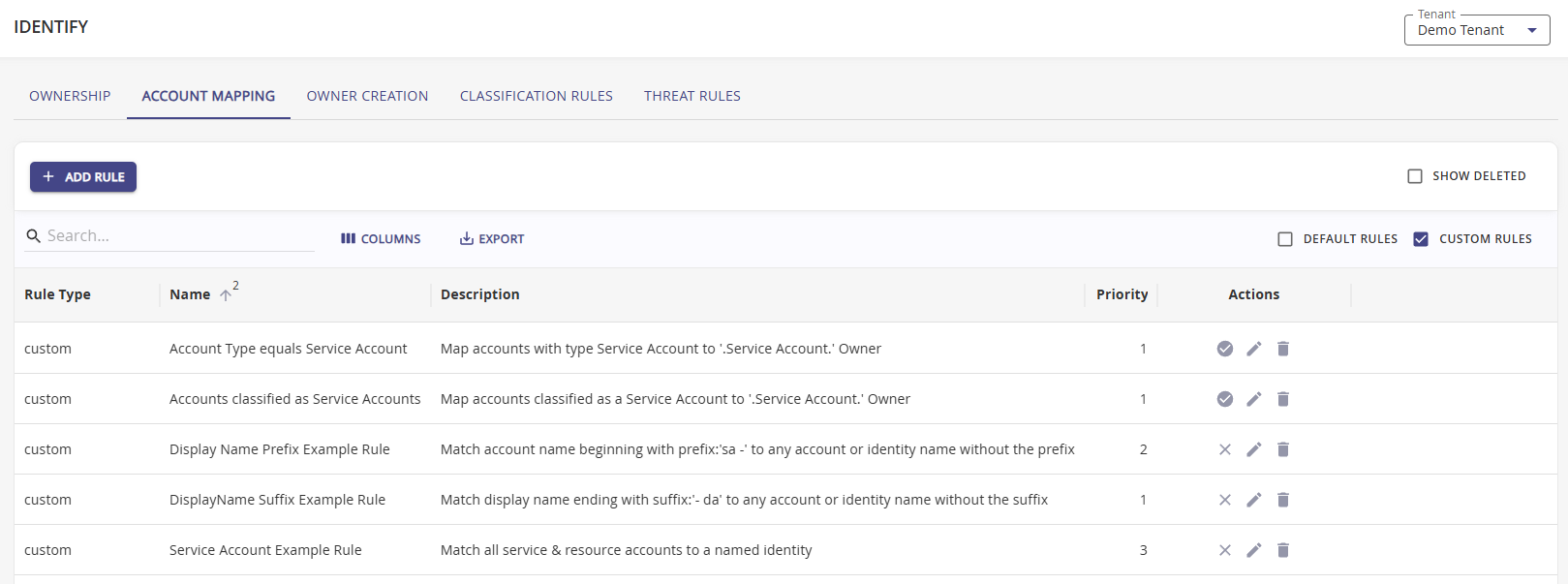
To filter the table view, use the checkboxes to enable/disable view options, like
- Default Rules: These are Hydden's out of the box default rules, they can be viewed, but not edited.
- Custom Rules: These are rules created on your tenant.
Use Search to trim the view down to a specific context.
Match Properties
The following properties are available for matching accounts to owners:
| Property | Description |
|---|---|
| Display Name | Matches on the account's display name |
| Primary Email | Matches on the account's primary email address |
| UPN | Matches on the account's User Principal Name |
| Custom | Matches on a custom attribute defined in the account data |
| IGA | Matches on an Identity Governance & Administration system identifier |
Operators
When defining match criteria, the following operators are available:
| Operator | Description |
|---|---|
| Contains | The property value contains the specified string |
| Starts with | The property value starts with the specified string |
| Ends with | The property value ends with the specified string |
| Equals | The property value exactly matches the specified string |
Rule Ordering Strategy
Rule Priority
Mapping rules are evaluated in priority order (lowest number = highest priority). The first matching rule determines the account-to-owner mapping. Consider the following strategy:
- Highest priority: Exact-match rules (e.g., Match Primary Email, Match UPN) that are most reliable
- Medium priority: Pattern-based rules (e.g., Match Name: first.last) for common naming conventions
- Lower priority: Broader catch-all rules (e.g., Match Any Email Alias) that are more permissive
Use the Preview feature to test how rules interact before enabling them in production.
Match vs Create Rule Interaction
Account mapping and owner creation rules work together in the following order:
- Match rules are evaluated first, in priority order. If a match rule finds an existing owner, the account is mapped to it.
- If no match rule succeeds, create rules are evaluated in priority order. If a create rule's criteria are met, a new owner is created and the account is mapped to it.
- If neither match nor create rules produce a result, the account remains unmapped.
NOTE
Both mapping and creation rules must be enabled on each data source separately to be active.
Creating an Account Mapping Rule
Purpose: Define a custom rule to match discovered accounts to existing owners.
Navigate to Configuration | Identify and select the Account Mapping tab.
Click + Add Rule.
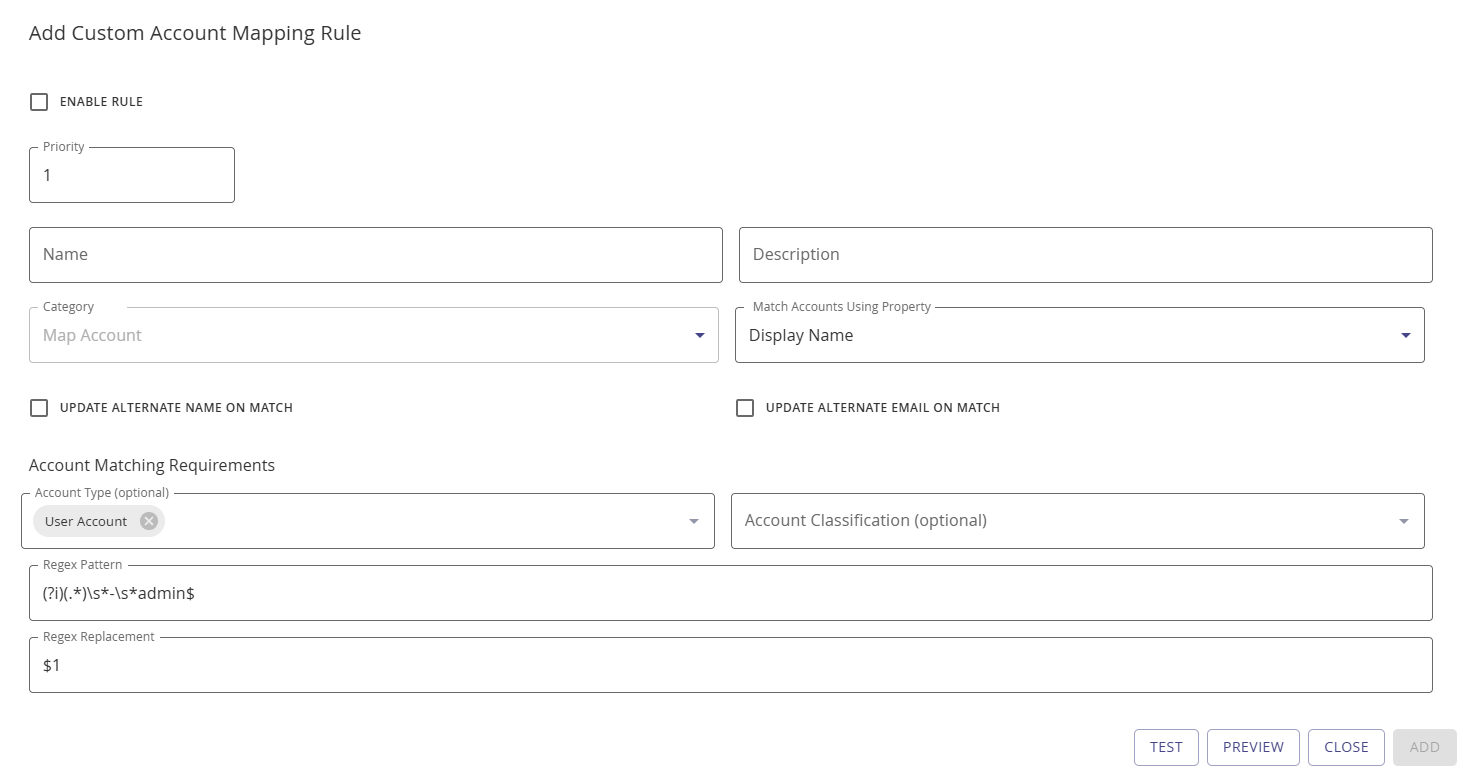
Specify the Rule Priority. A lower number specifies a higher priority in the evaluation order. By default, the modal opens with a value of 1 (highest priority).
Enter a Name and Description for your rule for organizational clarity.
From the Match Accounts Using Property field, select the matching property (Display Name, Primary Email, UPN, Custom, or IGA).
If required, select whether the mapped account's alternate name and/or email should be updated when matching.
Under the Account Matching Requirements section, specify
The Account Type(optional) can be
- User Account (default)
- Service Account
- Resource Account
- Computer Account
- Vaulted Account
- Federated Account
If not specified, all types apply.
NOTE
If both Account Type and Account Classification are configured, the rule applies only to accounts that match both conditions. An account must satisfy the account type filter and the classification filter for the rule to apply.
An Account Classification if configured. This is an optional field.
A RegEx Pattern to be match by the rule.
A RegEx Replacement to be used in the rule.
Use Test to verify your rule works as intended.
Once you are ready to use the rule in your environment, check the Enable Rule checkbox at the top of the modal. The Actions column indicates if a custom rule is enabled or disabled. It will either have a checkmark for enabled or an x for disabled. You may change the state by clicking the x or checkmark to enable or disable a rule without entering the Edit Custom or View Default Account Mapping Rule modals.
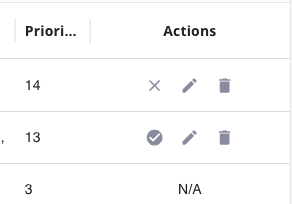
Mapping rules must be enabled on each [data source](/discover/config/discover/data-sources/overview) separately to be active.
Click Add to save and add the rule to your environment.
Testing a RegEx Rule
RegEx testing is available via the Test button on the add or edit account rule mapping modal. Save the test if you want to keep it associated with the rule.
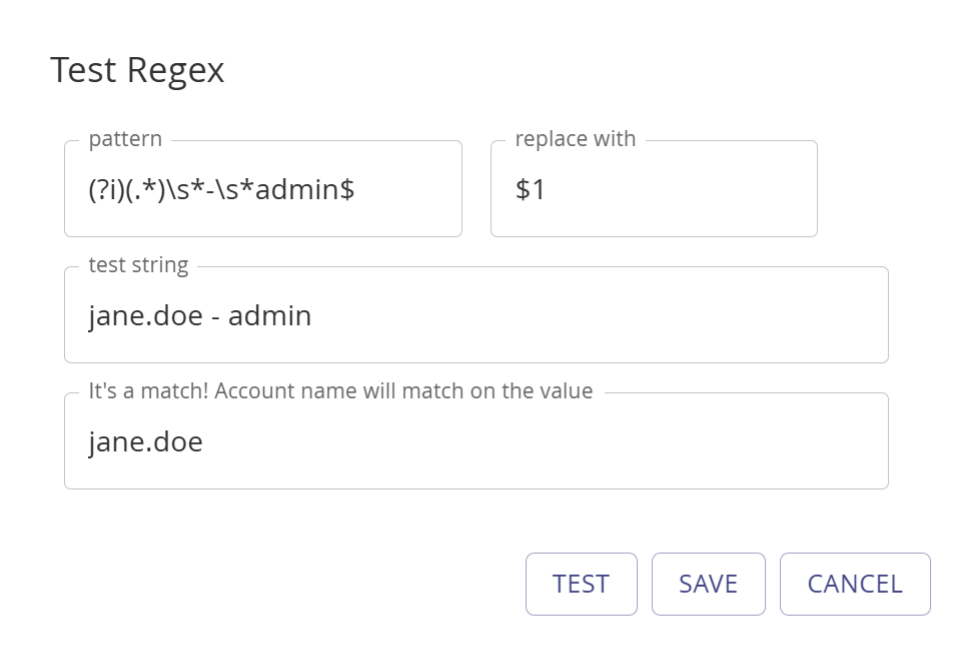
The regex pattern is used to match the account by selected attribute (name, email, upn). If a match is found, the 'replace with' string provides the value that is used to map to an owner.
Example 1: Admin Account Name Extraction
- Pattern:
(.+)\s*-\s*admin - Replacement:
$1 - Matches any account name ending with '- admin', e.g. "jane doe - admin"
- Replaces the matched string with the first capturing group, i.e. "jane doe"
- Uses the resulting string when matching the account to an owner
Example 2: UPN Domain Extraction
- Pattern:
(.+)@.+ - Replacement:
$1 - Matches any UPN, e.g. "jane.doe@contoso.com"
- Extracts the username portion before the @ sign, i.e. "jane.doe"
- Uses the resulting string when matching the account to an owner by display name or other property
Don't forget to press Save to save any changes you have made to the regex pattern or replacement string.
Previewing a Rule
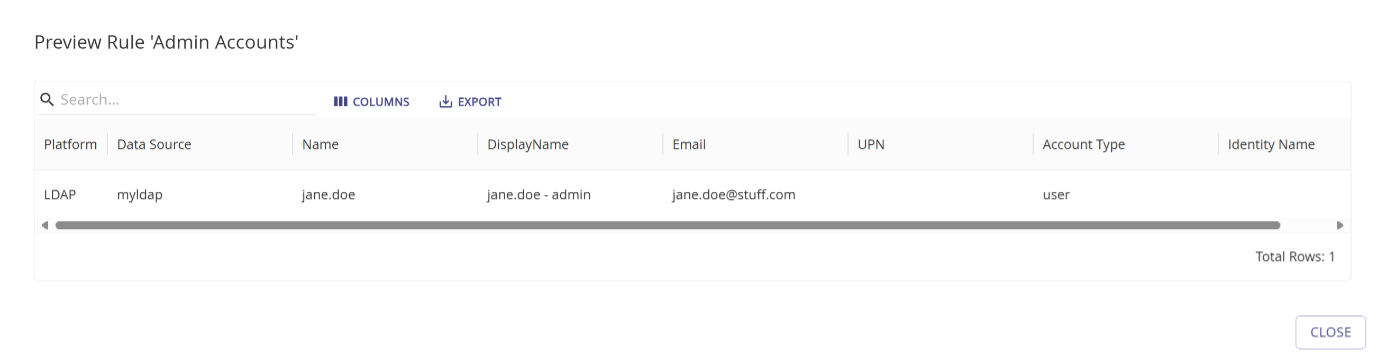
Run a preview to view the result of applying the rule.
This runs a preview of this rule on all currently unmapped accounts from all datasources, and reports each account that matches.
- For a create rule, it reports all the accounts that that rule could map to a new owner.
- For a match rule, it reports all the accounts that match the rule, and for each account, the owner (if any) to which the rule will map the account
Mapping Migration
Previously (pre 1.3.0) account mapping defaulted to the following rules:
- If matches were found on the primary email and account UPN.
With the advanced Account Mapping Rules, Hydden delivers the following default account mapping and owner creation rules.
NOTE
To use any of these rules, they need to be enabled on the configured Data Sources.
| Map Account Rules: 13 | Create Identity Rules: 12 |
|---|---|
| Match Any Email Alias | Create Identity: Requires 2+ Accounts & a configured email |
| Match Exact Display Name | Create Identity: Requires 2+ Accounts & a configured Email & a space between names |
| Match Name: first last | Create Identity: Requires 2+ Accounts & a configured email or UPN |
| Match Name: first middle last | Create Identity: Requires 2+ Accounts & a configured Email or UPN & a space between names |
| Match Name: first.last | Create Identity: Requires 2+ Accounts & a configured UPN |
| Match Name: firstinital.secondinitial.last | Create Identity: Requires 2+ Accounts & a configured UPN & a space between names |
| Match Name: firstinitial last | Create Identity: Requires email |
| Match Name: firstinitial secondinitial last | Create Identity: Requires Email & a space between names |
| Match Name: firstinitial.last | Create Identity: Requires email or UPN |
| Match Name: last first | Create Identity: Requires Email or UPN & a space between names |
| Match Name: last.first | Create Identity: Requires UPN |
| Match Primary Email | Create Identity: Requires UPN & a space between names |
| Match UPN |