
Owner Creation
What Owner Creation Rules Do
Owner creation rules determine whether a new owner should be automatically created when an account cannot be mapped to an existing owner. Without creation rules, unmapped accounts remain orphaned until manually addressed. Creation rules work together with Account Mapping rules: mapping rules attempt to match accounts to existing owners first, and creation rules handle the remainder.
The ownership creation rules allow users to configure how new owners are automatically created from one or more matching accounts. If an account cannot be mapped to an existing owner, then the create rules determine whether a new owner should be created to which the account can be mapped.
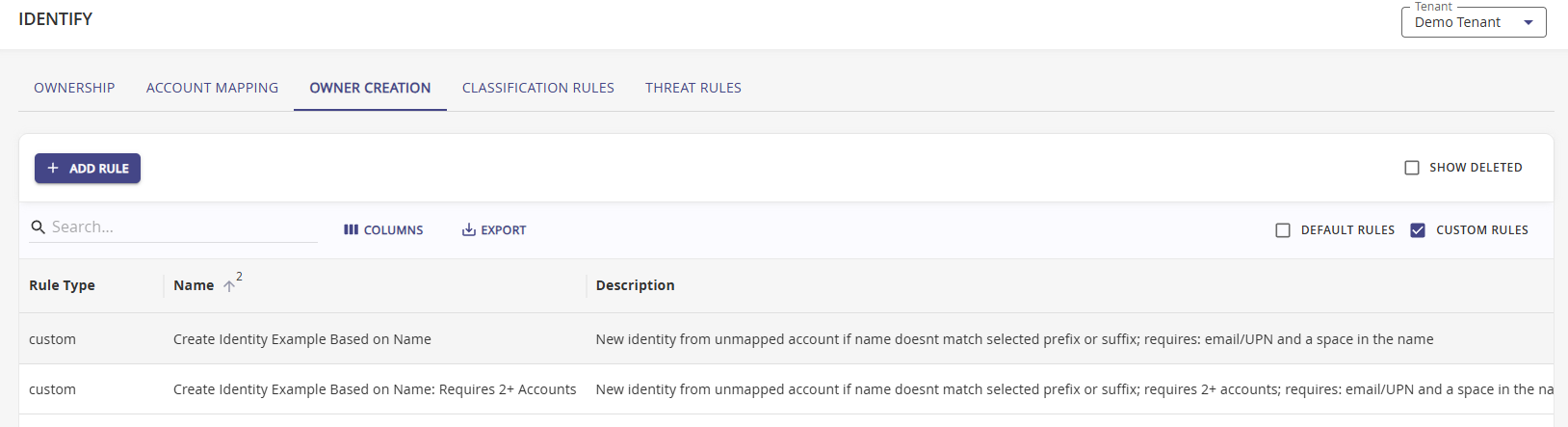
To filter the table view, use the checkboxes to enable/disable view options, like
- Default Rules: These are Hydden's out of the box default rules, they can be viewed, but not edited.
- Custom Rules: These are rules created on your tenant.
Use Search to trim the view down to a specific context.
Create Option Modes
When configuring how owners are created, three modes are available:
| Mode | Value | Description |
|---|---|---|
| Always | 1 | Always create a new owner when no match is found and the rule criteria are met |
| If Mapped | 2 | Only create a new owner if the account has already been mapped by a mapping rule |
| IGA | 3 | Defer owner creation to an Identity Governance & Administration (IGA) system |
Data Population by Source
When a new owner is created from an account, Hydden populates owner fields from the account's source data. Available fields vary by platform:
| Owner Field | Azure AD | Active Directory / LDAP | Okta |
|---|---|---|---|
| Display Name | displayName | displayName | profile.displayName |
| profile.email | |||
| Title | jobTitle | TITLE | profile.title |
| Department | department | DEPARTMENT | profile.department |
| Manager | manager | manager | profile.manager |
| Location | usageLocation | — | profile.city |
| Phone | businessPhones | telephoneNumber | profile.primaryPhone |
| Mobile | mobilePhone | mobile | profile.mobilePhone |
| Start Date | employeeHireDate | — | — |
NOTE
The initFromAccount flag must be enabled on the data source for owner fields to auto-populate from account data.
Rule Priority Strategy
Rule Ordering
Creation rules are evaluated in priority order (lowest number = highest priority). When multiple creation rules could match an account, only the first matching rule is applied.
- Place the most specific rules (with account type, classification, and email requirements) at the highest priority
- Place broader catch-all rules at lower priority
- Use the Preview feature to verify rule behavior before enabling
Creating an Owner Creation Rule
Purpose: Define criteria for automatically creating new owners from unmapped accounts.
Navigate to Configuration | Identify and select the Owner Creation tab.
Click + Add Rule.
Specify the Rule Priority. A lower number specifies a higher priority in the evaluation order. By default the modal opens with a value of 1 (highest priority).
Enter a Name and Description for your rule for organizational clarity.
The Category field is prefilled based on this being a Create Owner rule.
Under the Owner Creation Requirements
The Account Type(optional) can be
- User Account (default)
- Service Account
- Resource Account
- Computer Account
- Vaulted Account
- Federated Account
If not specified, all types apply.
NOTE
If both account Type and classification are configured, then the rule will apply to an account that matches either the account type or classification.
An Account Classification (optional) if configured.
A RegEx Pattern to be match by the rule.
Under Require Email, select from
- Email or UPN
- UPN
If required, select Require a space in the display name.
Optionally, select Require two or more matching accounts before creating an owner.
Use the RegEx test and Preview options to verify your rule.
Once you are ready to use the rule in your environment, check the Enable Rule checkbox at the top of the modal. The Actions column indicates if a custom rule is enabled or disabled. It will either have a checkmark for enabled or an x for disabled.
Click Add.
Also, refer to Testing a RegEx rule and Previewing a Rule under the Account Mapping topic.