
Map to Owner
The Map to Owner feature allows you to manually map accounts to owner identities (or unmap them) directly from the Account Details page. This provides flexibility to override automatic mapping rules, correct mapping errors, or establish relationships that the automated mapping logic cannot detect.
Overview
Account-to-owner mapping connects individual accounts discovered across different systems to a unified owner identity (a person, service, or system). While Hydden automatically maps accounts using account mapping rules and creates new identities via owner creation rules, manual mapping provides control for special cases.
Key Benefits:
- Override Automatic Mapping: Manually correct accounts that were mapped incorrectly by rules
- Handle Exceptions: Map accounts that don't match any automatic rules
- Consolidate Identities: Link disparate accounts to the correct owner when naming conventions differ
- Support Special Cases: Handle service accounts, shared accounts, or accounts with non-standard attributes
- Quick Remediation: Immediately fix mapping issues without modifying rules
When to Use Manual Mapping:
- Accounts with non-standard naming conventions that don't match rules
- Service accounts that need to be associated with specific owners
- Correcting incorrect automatic mappings
- Linking accounts from external systems with different identifiers
- Temporary mappings pending rule updates
Accessing Map to Owner
From Account Details Page
Navigate to Global Search > Accounts tab
Click any account row to open Account Details
Locate the Mapped To field in the Account Information tile
Click the Mapped to link (shows current owner name or "Not Mapped")
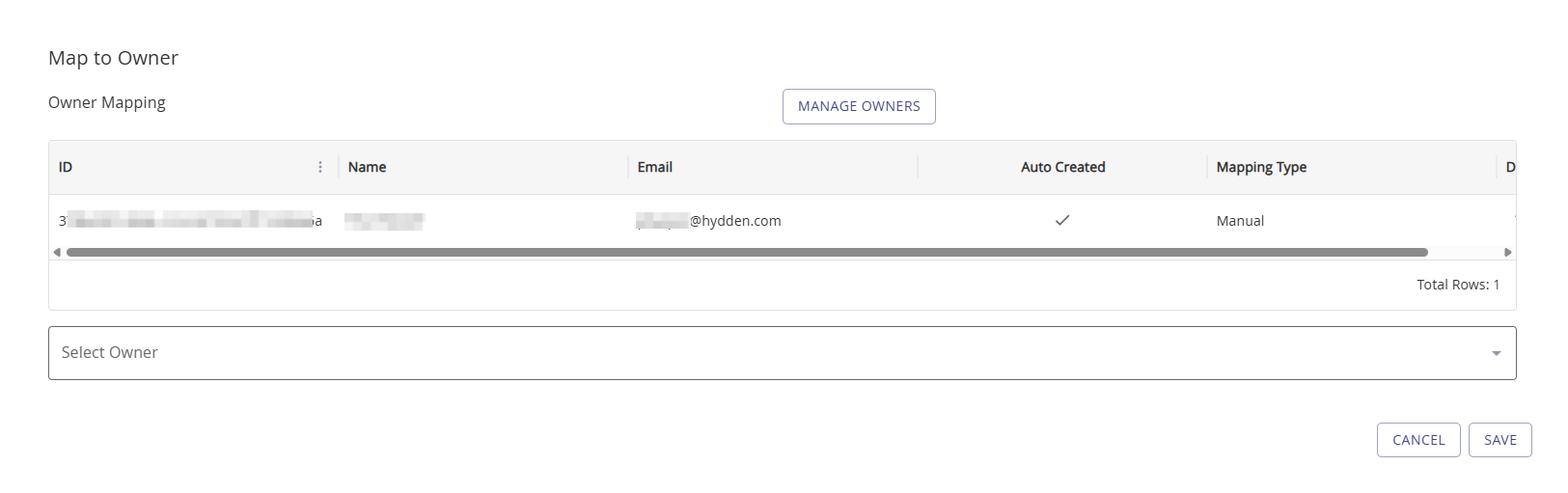
The Map to Owner modal opens, displaying:
- Current mapping status (if already mapped)
- Owner selection dropdown
- Manage Owners button for creating new owners
- Save and Cancel buttons
Mapping an Account to an Owner
Mapping a Previously Unmapped Account
If the account is not currently mapped to any owner:
- Open the Map to Owner modal from Account Details
- Click the Select Owner dropdown
- Search or scroll to find the correct owner identity
- Type to search by owner name, email, or identifier
- Results show owner display name and email
- Select the target owner from the list
- Click Save to establish the mapping
Result: The account is now mapped to the selected owner and will appear in that owner's account list on the Owner Details page.
Changing an Existing Mapping
If the account is already mapped to an owner:
- Open the Map to Owner modal from Account Details
- The current owner is displayed at the top of the modal
- Click the Select Owner dropdown to change the mapping
- Select a different owner from the list
- Click Save to update the mapping
Result: The account is remapped to the new owner and removed from the previous owner's account list.
Unmapping an Account
To remove an account's mapping entirely:
- Open the Map to Owner modal from Account Details
- Click the Select Owner dropdown
- Select "(None)" or clear the selection (if available)
- Click Save
Result: The account becomes unmapped and will no longer appear under any owner identity. The account may be automatically remapped during the next collection run if it matches any active mapping rules.
Managing Owners
If the owner you need to map to doesn't exist in the system, you can create a new owner directly from the Map to Owner modal.
Creating a New Owner
- Open the Map to Owner modal
- Click the Manage Owners button
- The Ownership configuration page opens in a new tab or window
- Click + Add Owner on the Ownership page
- Fill in the owner details:
- Owner Type: Human, System, Application, Vault, or Other
- Owner Identifier: Unique ID (if used in your organization)
- Display Name: Full name or identifier
- Email: Primary email address
- Alternative Display Name: Alternative name (optional)
- Alternative Emails: Additional emails separated by semicolons
- Status: Active or Inactive
- Start Date: Effective date
- End Date: Termination date (if applicable)
- Employee Info: Title, Manager, Department, Location, Phone, Mobile
- Click Add to create the owner
- Return to the Map to Owner modal
- Refresh or reopen the modal if needed
- Select the newly created owner from the dropdown
For detailed owner management instructions, see Ownership.
Mapping Behavior and Rules
Mapping Precedence
Manual mappings override automatic mappings, but behavior depends on data source configuration:
| Data Source Setting | Behavior on Next Collection |
|---|---|
| Block Remapping: Disabled | Automatic mapping rules will override manual mappings on next collection |
| Block Remapping: Enabled | Manual mappings are preserved and won't be overridden |
Best Practice: Enable Block Remapping on data sources where you use manual mappings to prevent them from being overridden.
Mapping Persistence
Manual Mappings:
- Stored permanently in the system
- Visible in the Auto column on the Ownership page (manual mappings show as blank)
- Preserved across data collection runs if Block Remapping is enabled
Automatic Mappings:
- Created by account mapping rules during data collection
- Visible in the Auto column on the Ownership page (shows checkmark)
- Recalculated on each collection run unless manually overridden
Clearing Auto Mappings
To clear an automatic mapping from the Ownership page:
- Navigate to Configuration > Identify > Ownership tab
- Expand the owner row using the + button
- Locate the account in the Auto column
- Click the checkmark to clear the automatic mapping
- The account becomes unmapped or can be manually mapped
Note: If Block Remapping is disabled, the mapping will be reestablished during the next data collection run.
Common Workflows
Correcting Incorrectly Mapped Accounts
Scenario: An account was automatically mapped to the wrong owner due to similar names.
- Open Account Details for the incorrectly mapped account
- Click Mapped to link to open Map to Owner modal
- Select the correct owner from the dropdown
- Click Save
- Verify the change on the Owner Details page for both owners
Mapping Service Accounts to Technical Owners
Scenario: Service accounts need to be associated with the team or system that manages them.
- Create a "Technical Owner" identity if it doesn't exist:
- Navigate to Configuration > Identify > Ownership
- Click + Add Owner
- Set Owner Type to System or Application
- Enter display name (e.g., "Database Team", "CI/CD System")
- Click Add
- Open Account Details for each service account
- Click Mapped to link
- Select the technical owner from the dropdown
- Click Save
Consolidating Accounts for Contractors with Different Email Domains
Scenario: A contractor has accounts across multiple systems with different email addresses that don't match.
- Create a new owner identity for the contractor (if needed):
- Use Manage Owners button in the Map to Owner modal
- Or navigate to Configuration > Identify > Ownership > + Add Owner
- Enter the contractor's primary email and alternative emails
- For each contractor account that isn't mapped correctly:
- Open Account Details
- Click Mapped to link
- Select the contractor's owner identity
- Click Save
- Verify all accounts appear under the contractor's Owner Details page
Handling Accounts with Special Characters or Non-Standard Naming
Scenario: Accounts with special characters or unique naming conventions don't match any mapping rules.
- Open Account Details for the unmapped account
- Click Mapped to link (shows "Not Mapped")
- Search for the correct owner using email or partial name
- Select the owner from the dropdown
- Click Save
- Optional: Create a custom account mapping rule to handle similar accounts automatically in the future
Verification and Troubleshooting
Verifying Successful Mapping
After mapping an account to an owner:
Check Account Details:
- Refresh the Account Details page
- The Mapped To field should show the new owner's name (clickable link)
Check Owner Details:
- Click the owner's name in the Mapped To field
- The Owner Details page opens
- Navigate to the Owner Accounts tab
- The account should appear in the list
Check Ownership Page:
- Navigate to Configuration > Identify > Ownership
- Expand the owner row using the + button
- The account should appear in the list of mapped accounts
Common Issues
| Issue | Cause | Solution |
|---|---|---|
| Owner not in dropdown list | Owner doesn't exist or hasn't been created yet | Use Manage Owners button to create the owner |
| Mapping reverts after collection | Block Remapping is disabled on data source | Enable Block Remapping on the relevant data source |
| Cannot find the correct owner | Owner exists but search isn't finding it | Try searching by email or partial name; verify owner exists in Ownership page |
| Save button disabled | No owner selected or no change made | Select an owner from the dropdown or verify a change was made |
| Account shows "Not Mapped" after saving | Mapping didn't save properly or was cleared | Retry mapping; check for error messages; verify data source settings |
| Multiple owners with similar names | Duplicate or similar owner identities | Review owner list; consolidate duplicates if needed; use full email to differentiate |
Best Practices for Manual Mapping
Enable Block Remapping: For data sources where you manually map accounts, enable Block Remapping to prevent automatic rules from overriding your changes
Document Special Cases: Keep notes on why certain accounts were manually mapped, especially for service accounts or special cases
Review Regularly: Periodically review manually mapped accounts to ensure they're still correct, especially after organizational changes
Use Alternative Emails: When creating owners, add alternative emails to help automatic rules catch more accounts
Create Rules for Patterns: If you're manually mapping multiple similar accounts, consider creating a custom mapping rule to automate the process
Verify Completeness: After mapping, check the Owner Details page to ensure the account appears correctly and all related data is accessible
Coordinate with Collectors: If accounts keep remapping incorrectly, review and adjust the data source's mapping rule enablement settings
Integration with Mapping Rules
Manual mapping works alongside automatic mapping rules:
Account Mapping Rules:
- Define how accounts are matched to existing owners
- Can be enabled/disabled per data source
- Evaluated during data collection
- See Account Mapping for configuration
Owner Creation Rules:
- Define when new owner identities should be automatically created
- Apply when no existing owner matches an account
- Can be enabled/disabled per data source
- See Owner Creation for configuration
Manual Mapping:
- Overrides automatic rules (if Block Remapping is enabled)
- Applies immediately without waiting for data collection
- Useful for exceptions and special cases
- Persists across collection runs when protected
Related Topics
- Account Details - Understanding account details pages
- Owner Details - Understanding owner details pages
- Account Mapping - Configuring automatic account mapping rules
- Owner Creation - Configuring automatic owner creation rules
- Ownership - Managing owner identities and viewing all mappings
- Global Search - Finding accounts and owners to map
- Data Sources - Configuring Block Remapping on data sources