
Global Search
Global Search provides an interactive, real-time interface for exploring identity-related data across your organization. With powerful filtering, sorting, and column customization capabilities, Global Search enables security teams to quickly investigate accounts, trace relationships, identify risks, and generate reports.
Overview
Global Search organizes data into entity-specific tabs, each optimized for its respective data type:
| Tab | Default Columns | Purpose |
|---|---|---|
| Owners | Owner Name, Owner Email, Number of Accounts, Total Threat | Search and analyze individual identities with aggregated account data and risk scores |
| Accounts | Platform, Data Source, Type, Display Name, Account Name, Email, Total Threat, Status | Investigate user accounts, service accounts, and federated identities across all connected systems |
| Groups | Platform, Data Source, Group Name, Group Display Name, Direct Member Count, Expanded Member Count | Analyze security groups, role groups, and distribution lists with membership details |
| Roles | Role Platform, Data Source Name, Domain, Provider, Name, Direct Role Count, Expanded Role Count | Examine cloud roles, application roles, and permission sets with assignment counts |
| Library | Pre-built Queries | Quick access to Search Library reports for common use cases |
For a complete list of all system columns and filters, refer to the Global Search Default Columns reference. Any custom threat rules created by your organization will automatically appear as additional column and filter options in Global Search.
Key Concepts
Entity Types
Global Search works with four primary entity types, each representing a different aspect of your identity infrastructure:
- Owners (Identities): Real people with one or more accounts across systems. Owners aggregate threat scores and account data from all mapped accounts.
- Accounts (Principals): Individual accounts on specific platforms. Types include User, Service, Federated, Discovered, and Vaulted accounts.
- Groups: Collections of accounts or nested groups. Includes both direct memberships and expanded (nested) memberships.
- Roles: Permission sets and role assignments in cloud platforms, applications, and services.
Filtering and Search Modes
Global Search supports multiple filtering approaches:
- Quick Search: Full-text search across all visible columns in the current view
- Column Filters: Granular filtering on individual columns with type-specific operators
- Multi-Column Filtering: Combine multiple filters to create complex queries
- Threat Rule Filters: Filter based on default or custom threat detection rules
Server-Side Row Model (SSRM)
Global Search uses a server-side row model for optimal performance with large datasets. This architecture:
- Fetches only visible rows from the server (typically 1000 at a time)
- Applies filters and sorting on the server side for fast response times
- Supports pagination for navigating large result sets
- Enables real-time filtering without reloading the entire dataset
How to Use Global Search Functionality
Quick Search Field
The Search field in the top-left area above the table enables full-text search across all visible columns in the current view.
How it works:
- Enter a search term in the Search field
- Press Enter or click the search icon
- The table automatically filters to show only rows matching the search term
- Search is case-insensitive and matches partial text
- Clear the search field to restore the full dataset
Use cases:
- Quickly find accounts by name, email, or display name
- Locate groups containing specific keywords
- Search for owners by name or email address
- Filter roles by name or provider
Note: Quick search queries visible columns only. For more granular filtering, use column-specific filters described below.
Saved Searches
| Saved Searches | |
|---|---|
| Save any data view on the page via the Save button. When saving a search, use a meaningful name to easily find the saved search again. On the save search modal, use the Favorites star to add your search to the favorites list. Optionally assign a Schedule to run the saved search on a recurring basis. | 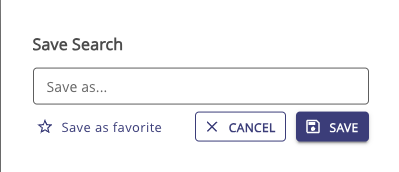 |
| Saved searches for your organization's tenant are available via the Saved Searches button. To rerun a data query based on a saved search, select the saved search from the list. | 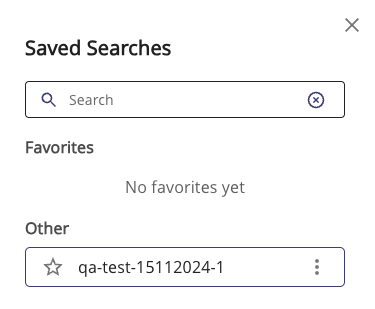 |
| When you look at data based on a saved search, the information about the saved search query in use is listed under the page title. |  |
| Update | Custom saved searches can be updated. Out-of-the-box saved searches used for the dashboard widget click-thru are write protected. They can be edited, but must be saved under a new name. When updating, you can also change the schedule assignment. |
| Delete | Custom saved searches can be deleted using the Delete button that appears alongside Update when viewing a custom saved search. Built-in saved searches cannot be deleted. A confirmation prompt appears before deletion. |
| Schedule | Assign a cron schedule to saved searches to run them automatically. Scheduled searches can trigger workflows via the Scheduled Report trigger type. Select a schedule from the dropdown when saving or updating a search. |
Any data query view is available for CSV file download via the Export to CSV button.
NOTE
When running several Delete workflows for saved search in a row, the Edit/Delete drop-down menu might unpin from the saved searches list.
Owner Example
If you are interested in looking up identity records, for example, mapped accounts associated with an Owner, you enter the name in the search field under the Owners tab. The table displays the data sets matching that search attribute. The Mapped Accounts column contains the mapped number. Use the chevron to expand the list of mapped accounts.
Columns
The data table can be customized with the Columns tab in the right page area. When clicked a drawer opens with options to manipulate the data view. Search on the columns tab will narrow down the available column options vs having to scroll through the full list.
| Columns tab | |
|---|---|
| In the right page drawer, use the Columns tab to select or deselect which columns to show on the page. In combination with the Search filters on each column, the data can be trimmed to meet specific use cases. | 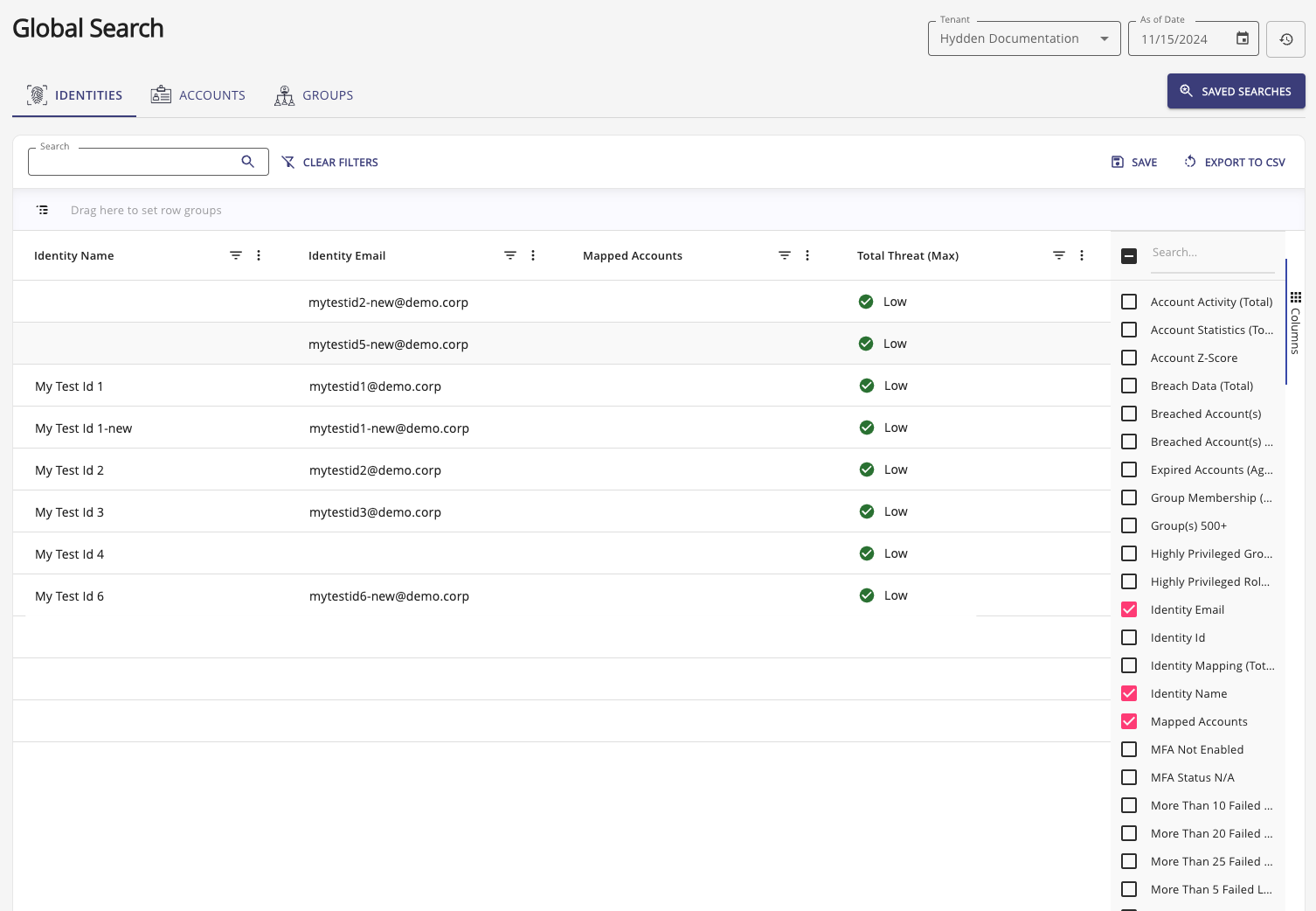 |
Filters
Each column offers column-specific filtering with operators appropriate to the data type. Filters enable precise queries across any combination of attributes.
Filter Types
Global Search supports multiple filter types based on the column data type:
| Filter Type | Description | Example Use Cases |
|---|---|---|
| Text Filters | Contains, equals, starts with, ends with | Filter by account name patterns, email domains |
| Number Filters | Equals, greater than, less than, between | Filter by threat scores, account counts, member counts |
| Set Filters | Select from available values (checkboxes) | Filter by platform, data source, status, MFA status |
| Date Filters | Date range, before, after, relative periods | Filter by creation date, last login, password age |
Date Filter Options
Date columns support both absolute and relative date filters:
| Option | Description |
|---|---|
| Equals | Matches a specific date |
| Not Equal | Excludes a specific date |
| Less Than | Before a specific date |
| Greater Than | After a specific date |
| In Range | Between two dates |
| The next month | Within the next 30 days from today |
| The previous month | Within the last 30 days before today |
| The next six months | Within the next 180 days from today |
| Today | Matches today's date only |
| Today or later | Today and all future dates |
| Blank | No date value set |
| Not Blank | Has a date value |
Relative date filters update automatically based on the current date, making them ideal for recurring saved searches and scheduled reports.
Using Column Filters
- Open Filter Menu: Click the filter icon in the column header
- Select Filter Type: Choose the appropriate operator for your query
- Enter Criteria: Input the value or select from available options
- Apply Filter: The table updates automatically to show matching rows
- Combine Filters: Apply filters to multiple columns to refine results further
Filter Examples
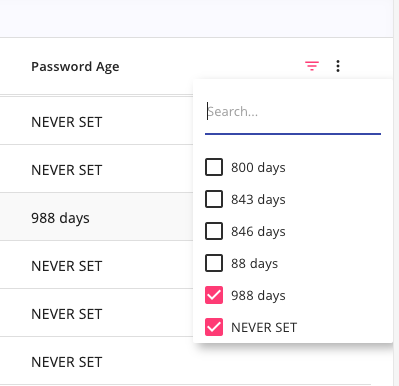
Example 1: Finding Stale Accounts
- Column: Password Last Set
- Filter Type: Date filter
- Condition: "Before" → Select date 90 days ago
- Result: Shows accounts with passwords older than 90 days
Example 2: High-Risk Privileged Accounts
- Column: Total Threat
- Filter Type: Number filter
- Condition: "Greater than" → Enter value: 5
- Column: Type
- Filter Type: Set filter
- Values: Select "Service"
- Result: Shows service accounts with high threat scores
Example 3: Accounts Without MFA
- Column: MFA Status
- Filter Type: Set filter
- Values: Select "No" and "N/A"
- Result: Shows accounts lacking multi-factor authentication
Clearing Filters
To remove active filters:
- Single Filter: Click the filter icon and select "Clear Filter"
- All Filters: Click "Clear All Filters" button (if available) or refresh the page
- Quick Search: Clear the search field to remove text-based filtering
Export
Use Export to download the current data table in CSV file format. Exports are ideal for offline analysis, reporting, or importing data into other tools.
Export Process
- Configure View: Apply filters, select columns, and sort data as desired
- Click Export: Click the Export or Export to CSV button
- Confirm Download: Click the Download as CSV button in the confirmation dialog
- Save File: The CSV file downloads to your default download location
Export Details
- Respects Filters: Only rows matching current filters are exported
- Current Columns: Exports include only visible columns in their current order
- Pagination: Large exports are processed in batches (typically 1000 records per batch)
- File Format: Standard CSV format compatible with Excel, Google Sheets, and data analysis tools
- Limit: Exports are subject to configured maximum limits (varies by system configuration)
Best Practices
- Pre-filter Data: Apply filters before exporting to reduce file size and focus on relevant data
- Select Key Columns: Hide unnecessary columns to create cleaner exports
- Name Saved Searches: Save your filtered view before exporting for reproducibility
- Large Datasets: For very large exports, consider using API-based export methods for better performance
Advanced Features
Sorting
Click any column header to sort the table:
- Single Click: Sort ascending (A-Z, 0-9, oldest-newest)
- Second Click: Sort descending (Z-A, 9-0, newest-oldest)
- Third Click: Remove sorting
- Multi-Column Sort: Hold Shift and click additional columns to create multi-level sorting
Column Customization
Customize your view using the Columns panel:
- Click the Columns button in the right panel
- Show/Hide Columns: Check or uncheck columns to display
- Reorder Columns: Drag columns to reposition them
- Pin Columns: Pin columns to left or right for easy reference
- Search Columns: Use the search field to quickly find specific columns
Column preferences are saved per user in browser local storage.
Entity Details Navigation
Each row in Global Search provides click-through access to detailed entity pages:
- Owners Tab: Click any owner row to view Owner Entity Details
- Accounts Tab: Click any account row to view Account Entity Details
- Groups Tab: Click any group row to view Group Entity Details
- Roles Tab: Click any role row to view Role Entity Details
Entity detail pages provide comprehensive information including:
- Relationship graphs showing connections to other entities
- Detailed attribute lists
- Threat detection results
- Historical data and changes
- Quick actions for mapping and remediation
Performance Considerations
Global Search is optimized for large datasets, but performance varies based on:
- Dataset Size: Millions of entities are supported via pagination and server-side filtering
- Filter Complexity: Simple filters perform faster than complex multi-column queries
- Network Latency: Queries execute on the server; network speed affects response time
- Concurrent Users: System resources are shared across all active users
Tips for Optimal Performance
- Use Specific Filters: Narrow results early with targeted filters
- Limit Visible Columns: Display only necessary columns to reduce data transfer
- Leverage Saved Searches: Pre-configured searches load faster than ad-hoc queries
- Paginate Large Results: Use pagination controls rather than scrolling through thousands of rows
- Export Strategically: For very large exports, schedule during off-peak hours or use API methods
Troubleshooting
| Issue | Solution |
|---|---|
| Search results not updating | Clear browser cache and refresh the page |
| Column filter values not loading | Check network connection; verify API authentication token is valid |
| Export failing for large datasets | Reduce result set with filters; check configured export limits |
| Saved search not appearing | Verify saved search permissions; ensure you're logged into the correct tenant |
| Performance degradation | Simplify filters; reduce visible columns; clear old saved searches |
Related Topics
- Global Search Default Columns - Complete reference for all available columns and threat rules
- Entity Details - Understanding entity detail pages
- Search Library - Pre-built queries and reports
- Threat Detection - Understanding threat scores and rules
- Identity Mapping - How accounts are mapped to owners