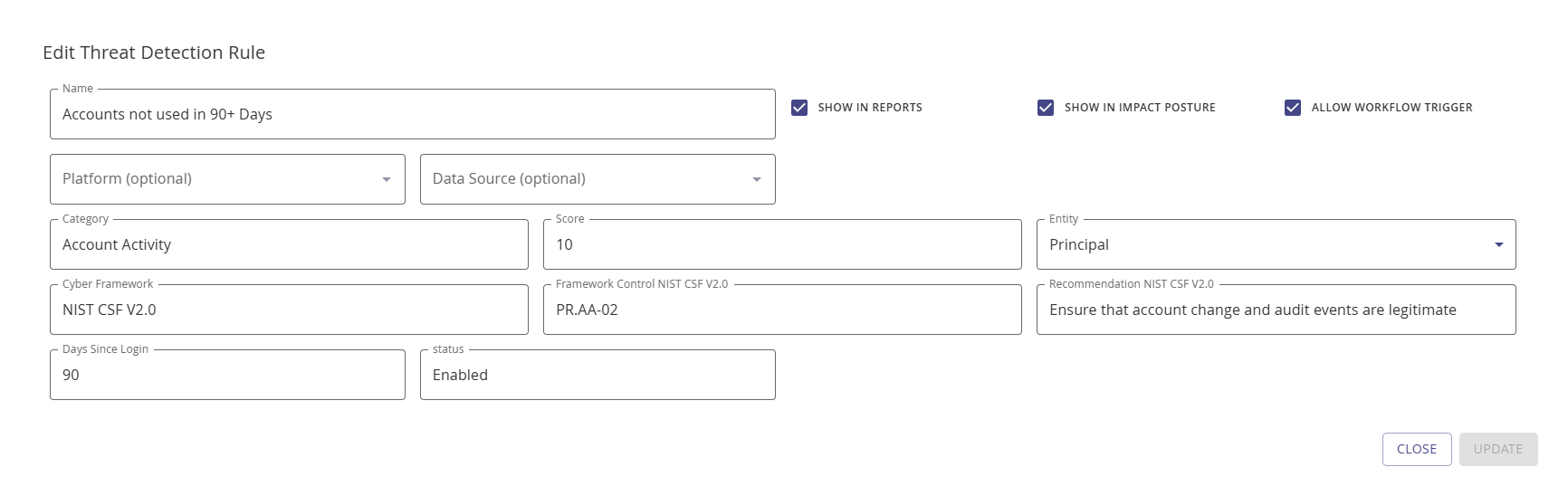
Configure a Threat Rule
Rule Configuration Options
Each custom threat rule supports the following configuration fields:
| Field | Description | Required |
|---|---|---|
| Name | A descriptive name for the rule | Yes |
| Score | Impact value (1–10) contributed to the category total | Yes |
| Show in Reports | Whether the rule appears in Search Library detection reports | No (default: on) |
| Show in Impact Posture | Whether the rule counts towards the Identity Posture threat score | No (default: on) |
| Aggregation Type | How scores combine: Maximum or Weighted | No |
| Cyber Framework | Compliance framework reference (e.g., NIST CSF V2.0) | No |
| Framework Control | Specific control function (e.g., PR.AA-03) | No |
| Detection Only | Flags accounts without contributing to the threat score | No (default: off) |
| Allow Workflow Trigger | Enables automated workflow actions when the rule matches | No (default: off) |
| Platform Filter | Restricts the rule to specific platforms | No |
| Data Source Filter | Restricts the rule to specific data sources | No |
Detection-Only Rules
When to Use Detection-Only
Detection-only rules identify and report matching accounts but do not contribute to the threat score. Use detection-only rules when you want to monitor a condition (e.g., password age > 180 days) without impacting the overall threat posture. Detection-only rules still appear in reports when Show in Reports is enabled.
Propagation Type
Score Propagation
The propagation type determines how multiple matches of the same rule aggregate:
- Max — Only the highest match score is used (default for most rules)
- Sum — All match scores are added together
For example, if an account matches a rule twice with scores of 5 and 3: max propagation yields 5, while sum propagation yields 8.
Choosing a Score Value
Score Guidance
| Score Range | Severity | Use For |
|---|---|---|
| 1–3 | Low | Informational conditions, policy preferences |
| 4–6 | Moderate | Policy violations, hygiene issues |
| 7–8 | High | Security risks requiring attention |
| 9–10 | Critical | Immediate security threats, compliance failures |
Consider the cumulative effect: multiple moderate-score rules in the same category can quickly reach the category maximum of 10.
Creating a Threat Rule
Purpose: Add a custom threat detection rule to flag accounts that match your organization's specific risk criteria.
Follow these steps to configure a Threat Rule:
Navigate to Configuration | Identify | Threat Rules.
Click + Add Rule.
For Name, enter a descriptive name for your new rule.
If you want the threat rule to show in reports, select the Show in Reports checkmark.
If you want the threat rule to count towards the overall Identity Posture Threat Score, select the Show in Impact Posture checkmark.
If the rule should flag accounts without contributing to the score, enable the Detection Only checkbox.
From the optional Aggregation Type drop-down, select maximum or weighted.
For Score, enter an impact number (1–10).
To restrict the rule to specific platforms, use the Platform Filter drop-down to select one or more platforms.
To restrict the rule to specific data sources, use the Data Source Filter drop-down to select one or more data sources.
For Cyber Framework, specify the specific framework applying to this rule, for example, NIST CSF v2.0.
For Framework Control, enter the control name, for example, for NIST CSF v2.0, it could be PR.AA-03.
NOTE
Multiple framework references can be added for a given risk factor.
Click Add.
You may also edit an existing custom Threat Rule via the edit button. Default Threat Rules can't be edited.
Use the Rule Matches button to retrieve all accounts that match the specific rule. Rule matching is not available for aggregation rules.
Threat Rule Actions
Refer to the Integrate section to learn about actions based on threat rules.
NOTE
To activate the workflow and threat rule association, enable the Allow Workflow Trigger checkbox on the add/edit Threat Detection Rule modal.